Help Center
Setup guides, walkthroughs, and answers for every ScanRaise feature. For account-specific questions, email support@scanraise.com.
Browse all help topics
- Getting Started
- Campaign Setup
- Class Goals & Battle Bars
- League Battle (multi-org)
- QR Codes & Cards
- Org Branding & Logo
- Donations & Payments
- Broadcast Email & Social
- Auctions
- Raffles
- Peer-to-Peer (P2P)
- Athons (walk/run/swim/read)
- Phone Browser Tracking and Fitbit Imports
- Scavenger Hunts
- Event Ticketing
- Merchandise Store
- Text-to-Give (SMS)
- Live Page
- Microsoft 365 SSO
- Clever Library & Roster Import
- ClassLink SSO
- District Management
- Parental Consent
- Stripe Connect Setup
- Sign-In Options (Magic Link, Passkey)
No matching articles. Try another word or contact support.
Getting Started
Follow these steps from sign-up through a tested campaign launch.
- Sign up at /start. Pick your organization type (PTA, school, church, sports, etc.) and enter the basics.
- Create your first campaign. Pick a supported mode: Native (payments go to your connected Stripe account), Passthrough (link to your existing donation page), or Platform (ScanRaise collects for your organization).
- Add or import participants from the campaign dashboard. Participants do not sign themselves up today. The organizer types names, pastes a roster, uploads a CSV, or uses an enabled roster integration. Each participant then receives a unique fundraiser code.
- Preview one fundraiser page and confirm that the campaign, participant display name, and goal are correct.
- Generate QR cards. Each fundraiser (a person, group, or class) gets a unique QR code.
- Test one scan, then share or print the QR cards. Donors scan, give from their phone, and you get notified.
- For native campaigns, connect Stripe so donations follow your Stripe payout schedule. See Stripe Connect Setup. Platform campaigns use the payout process described in Campaign Setup.
Detailed FAQ: Getting Started FAQ
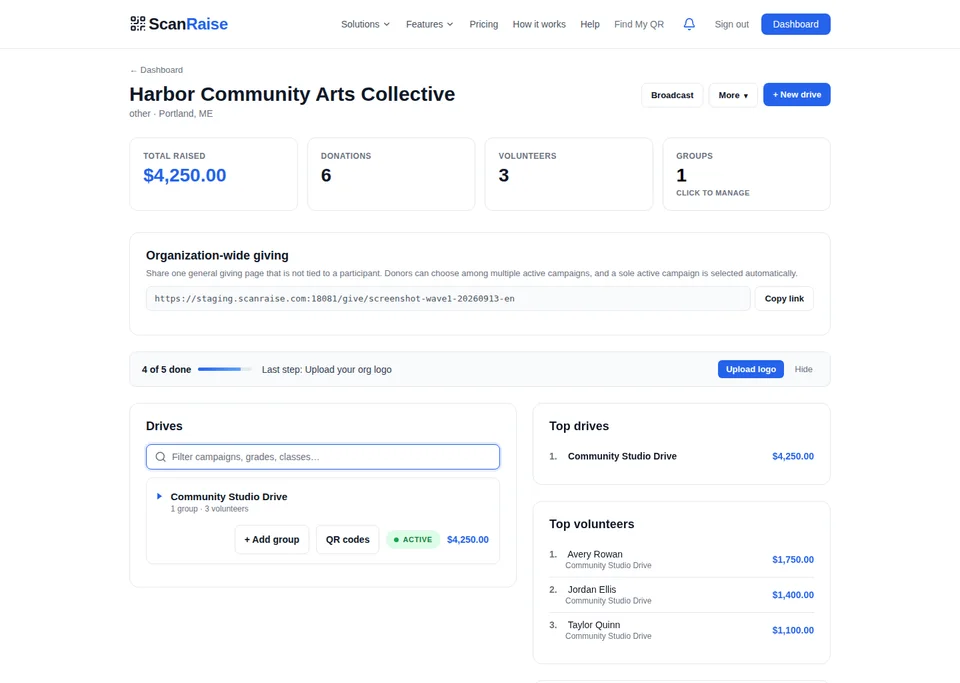
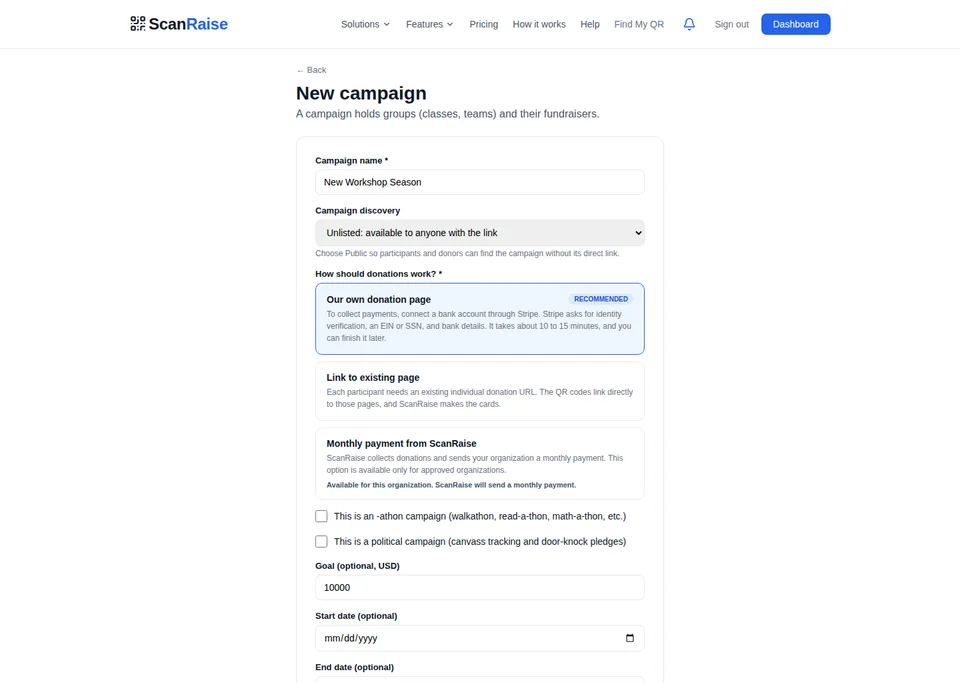
Campaign Setup
Campaigns are your fundraising containers. Each has groups (grades, classes, teams), fundraisers (individuals), and a goal.
Choose a campaign mode
- Native: ScanRaise processes payments through your Stripe Connect account. The 2.5% platform fee applies. Verification timing varies by account and required checks. The first payout is typically 7 to 14 days after the first successful live payment and may take longer. Later payouts follow the account-specific payout schedule.
- Passthrough: QR links to your existing donation page (Givebutter, GoFundMe, etc.). No payment processing on our end.
- Platform: We collect on your behalf via our Stripe account. Useful for orgs without their own Stripe.
More: Campaign Management FAQ
Class Goals & Battle Bars
Set a per-class (or squad, den, ward, company) fundraising goal so two groups can race head to head with live progress bars and crown / flame badges.
Set a class goal
- From your organization page, find the class heading (e.g. "Mrs. Anderson 6th Grade").
- Click the pencil icon next to the class name to open the Edit Class modal.
- Enter the class name, leader name, leader email, and Class goal in dollars.
- Save. The class head row immediately renders an animated progress bar.
How the head-to-head badges work
When two or more classes in the same campaign each have a goal set, ScanRaise auto-renders comparison badges:
- Gold crown on the leading class.
- Red flame with "$X behind" on classes catching up.
- Lightning bolt (TIED) when the leaders are even.
- Trophy + green bar when a class hits its goal.
Clear a class goal
Open the Edit Class modal, blank out the goal field, save. The progress bar and crown / flame badges disappear. The class still tracks its raised total in the leaderboard; it just doesn't display a goal.
League Battle (multi-org)
Two or more organizations racing each other in the same district / association / council. Each org keeps its own class-vs-class battle running internally; the league shows the orgs themselves competing at a higher level.
The three nested layers
- Class race (within one org): Mrs. Anderson's 6th vs Mr. Brooks's 6th, both in Greenwood PTA. See Class Goals above.
- Org race (within one league): Greenwood PTA vs Maplebrook PTA vs Westlake PTA, all in the Maple Valley Council. See the setup steps below.
- (Optional) league-wide goal: $50,000 across the whole council, with a top-of-page progress bar.
Who this is for
- School districts running coordinated PTA / PTO drives.
- Sports leagues / associations (Little League, Pop Warner, soccer clubs) running a season-end fundraiser across every team.
- Scout councils running multi-troop popcorn replacements.
- Fire-department mutual-aid groups running boot drive season together.
- Diocese / synod / conference running multi-congregation building-fund drives.
How the ranking works
Two modes, picked automatically:
- Raw dollars (default, when at least one org has no goal): orgs are ranked by total raised. Leader gets the gold crown, others show "$X behind" in red flame.
- Progress % (when every org in the league has a goal): a small school that hits 100% of its goal beats a big school stuck at 25%. This is the "fairest" mode for mixed-size leagues.
Badges:
- Gold crown: rank 1.
- Red flame & "$X behind": rank 2+ in raw-dollar mode.
- Lightning bolt (Tied): all orgs equal.
- Green trophy (Goal hit!): any org whose raised total exceeds its per-org goal, regardless of rank.
Set up a league
- Email support@scanraise.com with the league name and the orgs you want included.
- We provision the league and grant your email league-admin rights.
- Open
admin.scanraise.com/leagues. Click Edit on your league. - Set the league name, optional tagline, optional league-wide goal, and toggle Competitive mode + Publicly visible when you're ready to share the URL.
- Click + Add org to bring more orgs into the league. Set per-org goals via Set goal on each member row.
- Share the league's public URL (looks like
scanraise.com/league/your-league-name). The page auto-refreshes every 30 seconds. Press F for fullscreen at events.
Public visibility
Until you flip Publicly visible on, the league URL returns 404 to anyone who isn't a league admin. Use this to dial in goals + memberships before launching. Admins always see the standings preview at admin.scanraise.com/leagues.
QR Codes & Cards
Each fundraiser gets a unique short code that maps to a QR. Print on cards, posters, programs, or anywhere physical.
- Generate QR cards as a single PDF: every fundraiser, ready to print.
- Re-print individual cards as needed.
- Each card prints the donate URL (
scanraise.com/d/<short_code>) under the QR so anyone who can't scan can type or copy the link. - Organization logo: the logo imprints on the card using the fixed ScanRaise blue design (see Org Branding & Logo).
- QR URLs stay stable while the campaign remains active and accepting donations. Generate new cards when you start a new campaign.
The donate URL on every card
Below the QR, every card prints the same short URL the QR encodes (scanraise.com/d/GHCAA4GM, for example). Two reasons:
- Backup for non-scanners. Some grandparents won't get the camera focus right. They can type the URL into a browser instead.
- Shareable. Families can text the URL to a friend, paste it in a Facebook post, or read it out at a community event. Same destination as the QR.
Cards per page
Next to every Download printable QR cards link, you'll see a picker for how many cards print per letter page:
- 1 per page. One full 5.5" × 8.5" portrait card per letter page. Best for individual handout cards or a high-impact program insert.
- 2 per page. Two landscape cards stacked on a letter page. Best when you want each card to still feel substantial but use half the paper.
- 4 per page. Four card-stock-sized cards in a 2×2 grid. Best for high-volume printing; a class of 25 fits on 7 sheets.
Your choice is remembered across pages and campaigns. If your last page does not fill up, the unused slots print clean white instead of leftover template artwork.
Sharing a class's donate URL fast
From your dashboard, expand any class. Each fundraiser inside shows its scanraise.com/d/... URL with a Copy link button and Open ↗ link right there. Use this to email a teacher their class's donation URL without having to drill into the class detail screen.
Detailed FAQ: QR Codes FAQ
Org Branding & Logo
Upload your logo once and it imprints on every QR card and donation page automatically.
Upload a logo
- Open Org Settings from your dashboard.
- Find the Logo section near the top.
- Click Upload logo and pick a PNG, JPG, GIF, or WebP file (1 MB max). You'll see an 80×80 thumbnail preview.
- Click Save. Your logo is saved. Open a donation page and download a new QR card to check how it looks.
Where the logo appears
- Top of each newly generated QR card.
- Header of your public donation pages.
Already have a public URL?
If your logo is hosted elsewhere already (a school website, a shared drive with a public link, etc.), expand Or paste a public URL instead in the same Logo section and paste the URL. Use a link that anyone can open without signing in, or upload the image directly.
Donations & Payments
Standard fundraising has a 2.5% platform fee and no setup or monthly fee. Stripe processing is separate. Political Plus and Pro campaigns have a published monthly subscription; see Pricing.
- Donation confirmations are emailed automatically. They include the organization's EIN when provided and explain that deductibility depends on the organization and transaction.
- Recurring donations use configured monthly or annual tiers. Donors can recover a signed management link by email to update payment, change the amount within the same interval, or cancel at period end.
- When the ScanRaise refund feature is available, an eligible donation refunded through it works as follows: the donor receives the full original charge and ScanRaise returns its 2.5% platform fee. Stripe does not return its processing fee, so the organization absorbs that cost. Duplicate or unauthorized charges can also qualify for a platform-fee refund. Contact the receiving organization to request a refund; see the Terms for eligibility and other transaction types.
- Custom amounts: up to $2,500 per transaction.
Request or issue a donation refund
- Donors: contact the receiving organization with your receipt and the reason for the request.
- Organization owners: when the ScanRaise refund feature is enabled, open the donation in your dashboard and choose Refund. The workflow supports one full refund of an eligible completed donation within 90 days, with no partial refunds.
- Review the amount and confirm. Wait for Stripe confirmation before treating the donation as refunded.
- If that action is unavailable, connected-account owners can manage refunds in their Stripe Dashboard or contact support. A refund issued directly in Stripe has its own application-fee controls; do not assume that the platform fee was returned. Ask support to confirm how it applies to your refund.
Ticket, store, auction, and other purchases have separate refund policies. See Terms and the refund FAQ.
Detailed FAQ: Payments FAQ
Recurring giving
Organizations can offer configured monthly or annual tiers on the giving page.
- Configure named tiers, amounts, and a monthly or annual billing interval in the organizer giving manager.
- Donors select one active tier from the Monthly or Yearly view and complete subscription Checkout with Stripe.
- Donors recover a signed management link by email to change an amount, update payment, or cancel at period end.
- Invoice retries and billing messages follow the connected Stripe account's billing settings.
Broadcast Email & Social
Draft one campaign update, choose an audience, and send it by email or publish it through an eligible connected social account.
- Open Broadcast from your organization page and choose the campaign the message supports.
- Select a donor list or segment. Email sends are limited to 500 recipients at a time. For a larger audience, split it into supported segments or email support@scanraise.com before sending.
- Write the email subject and message. Save a draft if it is not ready to send.
- Select the channels. Email requires an active list. Facebook, Instagram, and Bluesky require the corresponding account to be connected in organization settings.
- Review the audience and channels, then send or publish. A provider error means the message was not confirmed on that channel. Reconnect an expired social account or correct the reported error before retrying.
- Review sent and failed counts, opens, clicks, and donations attributed to the campaign link where those measurements are available.
Every campaign email includes an unsubscribe link, and future sends must exclude recipients whose opt-out request was successfully applied.
Donor CRM
Completed donations, confirmed event tickets, and paid store orders, rolled up by email.
- Search by name or email; filter by date range, amount, or recurring-only status.
- Add manual tags and admin notes for stewardship reminders. Tags do not filter email audiences.
- Export the current search and supported filters to CSV for mail merges, board reports, or import into another tool.
- Donor tier auto-recompute uses completed donation lifetime giving only; configured tiers assign from those donation totals.
Community campaigns are not available
ScanRaise does not create community campaigns for outside beneficiaries. Use a native campaign with Stripe Connect when your organization receives the funds, or use passthrough when the intended cause already has a donation page.
Auctions
Run silent auctions inline with your campaign. Bidders enter on your fundraiser page, you collect at close.
Set up an auction item
- From the campaign admin, open Auctions.
- Click + New item.
- Enter: name, description, starting bid, optional reserve price, optional buy-now price, close time, image URL.
Reserve price (new)
If a reserve is set, the auction does NOT auto-award if bids stay below the reserve. You decide whether to award anyway, re-list, or cancel. Reserves are private to the org admin and never shown to bidders.
Buy now
If set, a bidder can end the auction immediately by paying the buy-now amount. Once paid, no further bids accepted.
Detailed FAQ: Auctions FAQ
Raffles
Publish one in-person ticket price or offer free online entry, then have an organizer run the one-winner draw.
- Add a name, description, image, one ticket price, optional ticket limit, and draw time.
- Paid online sales are unavailable. The organizer can handle paid ticket sales in person, or offer free online entry.
- An organizer starts the drawing. ScanRaise selects one confirmed entry and emails the recorded winner.
- Some states regulate raffles. Check your local laws before running one.
Detailed FAQ: Raffles FAQ
Peer-to-Peer (P2P) Fundraisers
Each individual creates their own page, sets a personal goal, shares with their network. Great for athons and personal fundraising drives.
- From the campaign admin, enable P2P mode.
- Each fundraiser opens the campaign invite at
/p2p/create/{campaign-id}and customizes their page (photo, story, goal). - They share a personalized link. All donations roll up to the parent campaign total.
- Leaderboard auto-ranks fundraisers by total raised.
Detailed FAQ: P2P FAQ
Athons (walk-a-thon, run-a-thon, swim-a-thon, read-a-thon)
Donors pledge per unit, authorize a maximum, and securely save a card with Stripe without a charge at pledge time. After the organizer finalizes eligible activity, ScanRaise attempts the final per-unit charge up to that maximum. Failed or authentication-required charges remain visible and provide a secure card recovery path.
Tracking modes
- GPS: phone tracks distance during a walk or run. Verified vs. impossible speeds, teleports.
- Step counter: phone accelerometer counts steps. Pace verified, replay attacks blocked.
- Timer: tracks active screen time. Used for read-a-thons, study-a-thons.
- Organizer review: when a sensor fails or a campaign uses a reviewed count, an organizer records the result in Athon Manager.
- Manual entry: available to participants in manual-unit campaigns. For a sensor failure, an organizer can record a reviewed result in Athon Manager.
Detailed FAQ: Phone browser activity tracking FAQ
Phone Browser Tracking and Fitbit Imports
Phone browser GPS and the phone step counter remain the primary paths. Fitbit is an optional participant-controlled import for supported distance and step campaigns.
For participants
- Open the private participant tracker link on a phone.
- Use the tracking mode selected for the campaign, such as GPS distance or the step counter.
- Grant location or motion permission when the browser asks.
- Tap Start and keep the tracking page active for the session.
- Stop and submit the result for campaign review.
Import a Fitbit daily summary
- Open the private participant tracker for a supported distance or step campaign.
- Choose Connect Fitbit and approve the requested access.
- Select the day to import.
- Review the daily summary of steps, distance, and active minutes.
- Choose whether to import that reviewed summary into the campaign.
Participants can optionally connect Fitbit, select a day, review the daily summary of steps, distance, and active minutes, and choose whether to import it. Each import requires this participant action. Optional Fitbit imports require a Fitbit account and app.
Detailed FAQ: Activity tracking FAQ
Scavenger Hunts
Multi-stop hunts with QR waypoints. Participants check in at each stop, learn something, donate at the end.
- Create waypoints with a title, description, GPS coordinates, and an optional secret code.
- Participants scan a starting QR, then visit each waypoint in order (or any order, your choice).
- Optional: donor pledges per waypoint completed.
Event Ticketing
Sell tickets, scan at the door, and track attendance. Each ticket gets a unique QR code that ScanRaise can validate at check-in.
- Contact support@scanraise.com to arrange event setup. Include the name, date, venue, and ticket types you need. The dashboard does not yet offer self-serve event creation or ticket-tier editing.
- Buyers receive an email with a QR ticket. Scan at check-in to verify.
- Check-in by ID + email fallback if QR is unreadable.
- Altered or forged QR ticket codes are rejected.
Detailed FAQ: Event Ticketing FAQ
Merchandise Store
Sell configured merchandise with inventory controls, shipping details, tax calculation, and organizer order management.
- Contact support@scanraise.com about product setup. Product creation and editing are not available in the browser manager yet; it currently covers orders only.
- Buyers select product options, enter shipping details, and check out with Stripe.
- Inventory is checked during checkout, and a product is marked sold out when the available quantity is reached. Availability can change until payment is confirmed.
- Buyers receive placed, shipped, and delivered emails. A refund updates the order record, but no automated refund email is currently sent.
Detailed FAQ: Store FAQ
Text-to-Give (SMS)
Donors text a keyword to (833) 991-9251 to request the matching payment link. ScanRaise sends one reply. No app or account is needed to request the link.
Set up a keyword
- Open your Org Settings page (gear icon on your dashboard) and scroll to Text-to-Give Keyword.
- Pick a keyword (3-30 chars, A-Z 0-9). Has to be globally unique across ScanRaise.
- Save. Test by texting the keyword to (833) 991-9251.
Live Page
A public projector-friendly page that shows real-time donations and activity for your campaign. Use at events, on stage, in the cafeteria.
- Visit
/live/{campaign-slug}. - Auto-refreshes every 5 seconds while healthy and retries after 30 seconds if the connection fails.
- Shows: total raised, top fundraisers, recent donors, pacing, optional QR code overlay.
- Customize donor display (name only, name + amount, anonymous-friendly).
Microsoft 365 SSO
Schools and districts that run on Microsoft 365 / Entra ID can sign their staff in with their work account.
Setup (district admin)
- Email support@scanraise.com with your tenant ID and domain.
- We'll add ScanRaise to your tenant as an enterprise app and enable user assignment.
- Your staff visit /login → click Sign in with Microsoft → use their work account → done.
Microsoft 365 sign-in uses certificate-based authentication, so the district does not need to maintain a client secret.
Clever Library & Roster Import
Clever sign-in and roster import are built for enabled accounts. Availability in a school's Clever portal depends on the current Clever Library listing and any required provider or district approval. Contact support@scanraise.com to confirm availability for your school before rollout.
Sign in
- From your Clever portal, search "ScanRaise" in the Library and tap Install (once the Library listing is live). Or any time, go directly to /login → Log in with Clever.
- Approve the data-sharing consent (we read your basic profile and the classes you teach).
- You land in your ScanRaise dashboard.
One-tap roster import
Once you are signed in with Clever, the New Class page shows a third tab: Import from Clever.
- Click the Import from Clever tab. ScanRaise loads your classes from Clever.
- Each section appears as a row with a checkbox, an editable name (defaults to Clever's section name), and a count of students.
- Uncheck any sections you don't want to import. Rename any if you'd like.
- Click Import N sections. ScanRaise adds the selected classes and creates a QR fundraiser for each student.
What we collect
The Clever import formats each student as first name + last initial and does not import the student's email. The import is opt-in per section, so the teacher controls which classes sync. Other manual or connected roster paths can accept the display name supplied by an organizer, so review every imported name before publishing participant pages. Caps: 50 sections per import, 200 students per section.
Library access is teacher self-serve only where the listing is available. District-wide deployments via Clever Complete are not part of ScanRaise's current offering. Districts that need organization-wide rollouts can ask about ClassLink, Google for Education, or Microsoft 365 SSO.
ClassLink SSO
ClassLink role-aware sign-in for administrator, teacher, and parent identities is built. It grants only access already associated with the returned email. Production access is enabled per district and depends on provider and district approval. Contact support to confirm current availability.
- Email support@scanraise.com from your district account.
- We'll add ScanRaise to your ClassLink tenant. Provide the OAuth redirect URI we send.
- Once enabled, users see Sign in with ClassLink on /login.
We use the approved OpenID and profile scopes to identify the person signing in. This does not automatically match parents to students or connect a parent to a participant fundraiser.
District Management
For provisioned district administrators: retrieve read-only fundraising totals and per-school breakdowns across linked organizations.
- Retrieve linked organizations, total raised, campaign counts, and per-school breakdowns.
- Export a district-wide CSV or JSON snapshot for the board / superintendent.
- Single SSO login (Microsoft, Clever, or ClassLink) gates access.
- Per-school admins still own their data; provisioned district access is read-only.
A self-serve district dashboard is not available. Campaign status and compliance audit logs are not part of the current district response.
Landing page: For Districts
Parental Consent
For participants under 13, consent-gated browser tracking stays blocked until ScanRaise records a parental-consent grant.
- The organizer identifies that a participant is under 13 and provides the parent or guardian email used for the consent request.
- The parent or guardian receives a dedicated link, reviews the notice, and chooses Grant consent. Simply opening the link does not grant consent. No paper form, payment, or ID document is required. Consent enables private participation. Under-13 donation links show the campaign, and individual child details stay off public rosters, leaderboards, and donation feeds. Donations still count toward the campaign.
- To refuse, take no action. Unanswered requests expire after seven days and are scheduled for deletion with the parent email.
- To request access to or deletion of a child's information, or to revoke consent and stop further tracking, email support@scanraise.com. Include the organization and participant so support can verify the request. Revocation and deletion are separate: some consent or financial records may need to be retained, as explained in the Privacy Policy.
- Without a recorded grant, the private tracker and scavenger location or secret-code check-in remain blocked.
- ScanRaise sends a confirmation email before recording the grant, timestamp, and IP address. An emailed link records the response; it does not independently verify a person's identity or relationship to the participant.
Stripe Connect Setup
With a connected Stripe account, funds settle to your organization's bank according to Stripe's payout schedule and ScanRaise deducts its 2.5% platform fee. Approved organizations using platform collection receive monthly payouts by check or bank transfer.
- From your org settings, click Connect Stripe.
- Stripe walks you through identity verification (your EIN, bank account, signing officer).
- Once approved, you're set. Donations route directly to your bank.
Sign-In Options (Magic Link, Passkey, SSO)
No passwords. We support magic-link email, passkeys (Touch ID / Face ID / Windows Hello), and four SSO providers.
- Magic link: enter your email, we send a one-time sign-in link. Default for first-time users.
- Passkey (recommended after first sign-in): authorize your device's biometric to sign in instantly. Roams via iCloud Keychain or your password manager.
- Microsoft / Clever / ClassLink / Google SSO: see sections above.